ALDLdroid User Manual

The complete guide to OBD-I diagnostics, data logging, tuning & chip programming on Android

Developed by Sébastien Giroux

Get Started in 3 Steps

1

Install

Download ALDLdroid from Google Play Store, launch once

Installation Guide →
2

Connect

Pair your Bluetooth adapter or plug in USB, select your ADX file

Connection Guide →
3

Drive

Tap Connect and see live data on the dashboard

Dashboard Guide →

1. Overview

ALDLdroid is an Android application that turns your phone or tablet into a full-featured diagnostic, data logging, and tuning tool for OBD-I GM (ALDL) Engine Control Modules (ECMs). Originally built for General Motors vehicles from the mid-1980s through mid-1990s, the app has expanded to support a wide range of vehicles and ECMs from other manufacturers through its flexible, file-based architecture.

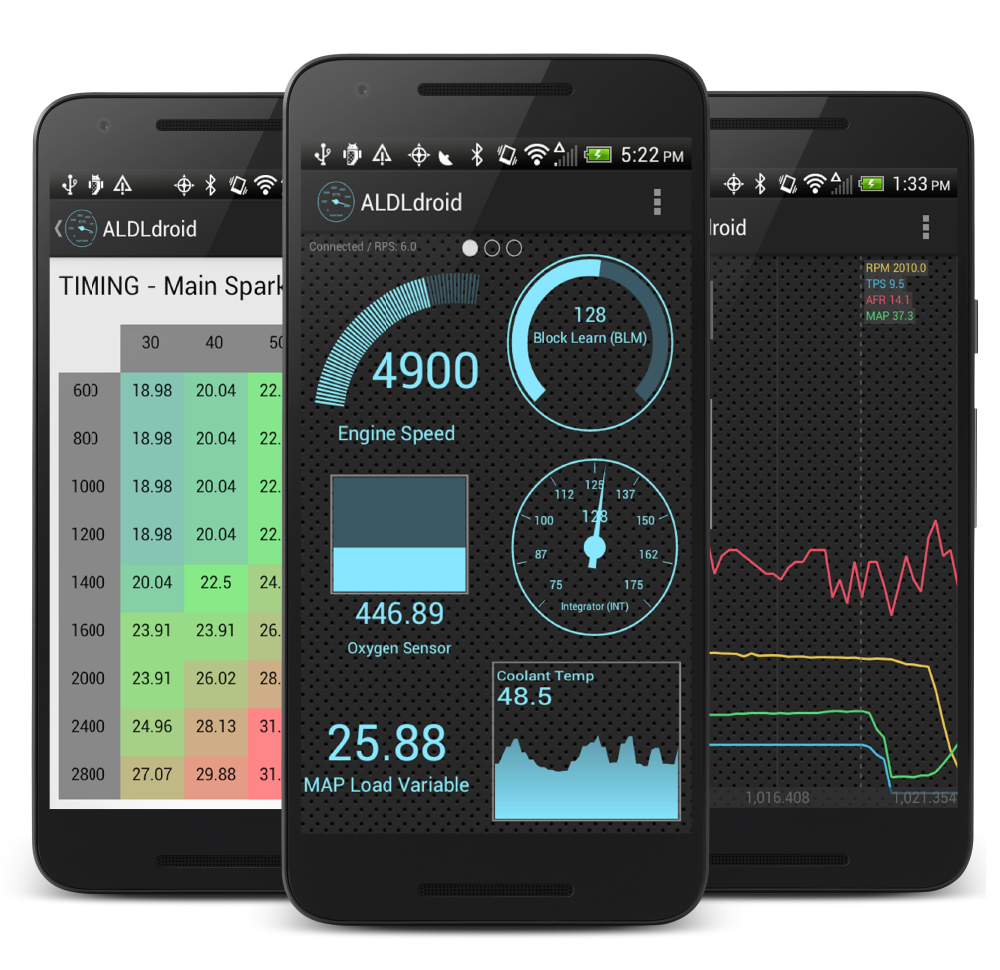
ALDLdroid running on three phones showing dashboard, tuning, and data logging screens

ALDLdroid in action — live dashboard, tuning tables, and data log viewer

📊

Live Dashboard

Customizable gauges, readouts, bar graphs, and histograms displaying real-time ECM data.

🔧

Tuning Editor

Full tuning interface using TunerPro-compatible XDF/BIN files with 2D table editing and more.

💾

Chip Programming

Burn modified BIN files to physical EPROM/Flash chips using Moates BURN1/BURN2 hardware.

📝

Data Logging

Record and analyze ECM data with time-series, scatter plot, and GPS map viewers.

🌐

Broad Compatibility

GM OBD-I (160 & 8192 baud), plus BMW, Ford, DSM, Porsche, Ducati, and many more via ADX and XDF files.

📶

Wireless & Wired

Connect via Bluetooth (Red Devil River) or USB with any FTDI-based adapter cable.

What is ALDL?

ALDL stands for Assembly Line Diagnostic Link. It is GM's proprietary diagnostic protocol used before the OBD-II standard became mandatory in 1996. ALDL interfaces provide access to the data stream from the ECM, allowing technicians and enthusiasts to read sensor values, trouble codes, and other engine parameters in real time. ALDL typically uses either a 160 baud (older) or 8192 baud (newer) serial communication protocol.

What ALDLdroid Is — and What It Isn't

ALDLdroid is a powerful tool for enthusiasts who are already familiar with their vehicle's ECM and the TunerPro ecosystem. It is not a plug-and-play scan tool like a generic OBD-II reader. You will need the correct ADX (data stream definition) file for your ECM, appropriate hardware to connect, and at least a basic understanding of how your ECM communicates. This manual will help you get there.

2. Quick Start Guide

This section gets you from zero to reading live data as fast as possible. Detailed coverage of each topic follows in later sections.

Requirements

ItemDetails
Android deviceAndroid 6.0 (Marshmallow) or newer. Phone or tablet.
Connection hardwareBluetooth adapter (Red Devil River recommended) or USB FTDI-based cable (requires USB Host / OTG support on your device).
ADX fileTunerPro-compatible ADX file matching your specific ECM. The app includes some common ones; others can be sourced from community forums.
VehicleA GM vehicle (or other supported vehicle) with an ALDL diagnostic connector.

Installation

Install ALDLdroid from the Google Play Store. Search for "ALDLdroid" or visit the app listing directly. This is a paid app.
Launch the app once. On first launch, ALDLdroid creates its folder structure on your device's internal storage. This includes directories for ADX files, XDF files, BIN files, and data logs.
Add your ADX file (if not already included). In the app's Settings, use the Import data stream function to import your vehicle's ADX file.
Pair or connect your hardware. If using Bluetooth, pair your adapter in Android's Bluetooth settings first. If using USB, simply plug in the FTDI cable via USB OTG.

First Connection

Open ALDLdroid and go to Settings. Select your Data Stream File (ADX) from the list. Tap the "Data Stream File" line to browse available ADX files.
Select your connection type — Bluetooth or USB — and choose your paired adapter from the device list.
Turn on your vehicle's ignition (engine running or key in ON position, depending on your ECM).
Tap Connect. The app will establish communication with your ECM and begin streaming live data to the dashboard.
Tip: Quick Verification Once connected, you should see live data within seconds. If coolant temperature, RPM, or TPS values are changing and look reasonable, you are connected and reading correctly.

3. Connection & Hardware

ALDLdroid communicates with your vehicle's ECM through an adapter that converts the ALDL serial signal to Bluetooth or USB. The app supports both wireless and wired connections, each with its own advantages.

Bluetooth Setup

Bluetooth provides the convenience of a wireless connection. The recommended adapter is the Red Devil River Bluetooth ALDL adapter. The older 1320 Electronics Bluetooth adapter is also fully compatible if you can find one on the used market.

Plug the Bluetooth adapter into your vehicle's ALDL diagnostic connector (usually located under the dash on the driver's side).
Power on the adapter (some power from the ALDL connector itself when ignition is on; check your adapter's documentation).
Open Android Bluetooth settings and pair the adapter. The default PIN is typically 1234 or 0000 — consult your adapter's manual.
In ALDLdroid settings, select Bluetooth as your connection type and pick your paired adapter from the list.

USB (FTDI) Setup

USB connections provide a direct, reliable wired link. ALDLdroid supports any FTDI chip-based USB-to-serial cable. Your Android device must support USB Host mode (also called USB OTG). Most modern Android devices support this, but having a USB port alone does not guarantee USB Host mode compatibility.

USB Host Mode Required Not all Android devices support USB Host mode. Check your device specifications or search for "USB OTG checker" apps on the Play Store to verify before purchasing a cable.
Connect your FTDI USB-to-ALDL cable to the vehicle's ALDL port.
Plug the USB end into your Android device using a USB OTG adapter if needed.
When prompted by Android, allow ALDLdroid to access the USB device.
In ALDLdroid settings, select USB as your connection type.
FTDI Driver Note ALDLdroid includes both an older FTDI driver (for compatibility with Android 7.0 and below) and updated FTDI drivers (to prevent crashes on Android 14 and above). If you experience connection issues, make sure you are running the latest version of the app.

Hardware Reference Table

Hardware Type Use Case Status
Red Devil River adapter Bluetooth ALDL data stream connection Recommended
1320 Electronics adapter Bluetooth ALDL data stream connection Compatible (used market only)
Any FTDI-based USB cable USB (wired) ALDL data stream connection Supported
Moates Ostrich USB Real-time tuning (emulator) Supported
Moates AutoProm USB Real-time tuning + chip programming Supported
Moates BURN1 USB Chip programming (EPROM burner) Supported (discontinued)
Moates BURN2 USB Chip programming (EPROM burner) Supported

ALDL Protocol Modes

ALDLdroid supports both communication speeds used by GM ALDL ECMs:

Baud RateTypical ECMs
160 baudOlder GM ECMs (early-to-mid 1980s). Slower data rate with fewer parameters.
8192 baudLater GM ECMs (late 1980s–1995). Faster data rate with richer data streams.

Your ADX file determines which protocol mode the app uses. Ensure your ADX file matches your ECM's protocol.

4. File Formats & Management

ALDLdroid uses the same file formats as TunerPro, the popular Windows-based ECM tuning software. This means you can share files between the two platforms and leverage the extensive library of definition files available in the TunerPro community.

ADX Files — Data Stream Definitions

ADX files define how ALDLdroid communicates with your ECM and interprets the data stream. Each ADX file is specific to an ECM type and contains the definitions for all readable parameters (sensor data, flags, trouble codes), their memory addresses, and how to decode them.

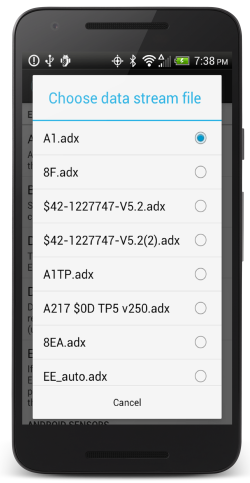
ADX file selection dialog showing available data stream files

Selecting a data stream file (ADX) for your ECM

Critical ADX Setting: RS232 Echo Some ADX files may be configured with "RS232 Echo" turned off, which is incorrect for ALDLdroid. If you cannot connect, open the ADX file in TunerPro on a PC and verify that RS232 Echo is set to ON. Not all ADX files are compatible with ALDLdroid.

XDF Files — Tuning Definitions

XDF files are tuning definition files that describe the layout of tables, maps, and parameters within a BIN (binary calibration) file. The tuning section of ALDLdroid uses XDF files to present editable tables and allow you to modify calibration data. You can import XDF files directly into the tuning section.

Encrypted XDF Files ALDLdroid supports encrypted XDF files. Some tuning vendors encrypt their XDF files to protect proprietary calibration work — ALDLdroid can handle these without issue.

BIN Files — Calibration Data

BIN (binary) files contain the actual calibration data of your ECM — fuel maps, spark tables, idle settings, and hundreds of other parameters. BIN files are opened alongside an XDF definition file so the app knows how to interpret the raw data. You can read a BIN from a chip, modify it using the tuning section, and then burn it back to a chip.

File Management on Your Device

When ALDLdroid runs for the first time, it creates a folder structure on your device's storage:

ALDLdroid/
  ├── adx/          ← Data stream definition files
  ├── xdf/          ← Tuning definition files
  ├── bin/          ← Calibration (binary) files
  └── datalogs/     ← Recorded data log files (CSV and XDL format)

Importing Files

You do not need to manually copy files using a file manager. ALDLdroid provides built-in import functions:

  • ADX files — Use the Import data stream function found in the app's Settings section.
  • XDF and BIN files — Use the Import file menu located in the Tuning files section of the app.

Where to Find Files

ADX, XDF, and BIN files can be sourced from several places: the TunerPro website, GearHead-EFI forums, ThirdGen.org, pcmhacking.net, TurboTweak, and various vehicle-specific enthusiast communities. Many are freely shared; others may be sold by tuning vendors.

5. Dashboard

The Dashboard is the primary interface for viewing real-time data from your ECM. It displays live sensor values, flags, and derived parameters using a variety of visual indicator styles that you can fully customize.

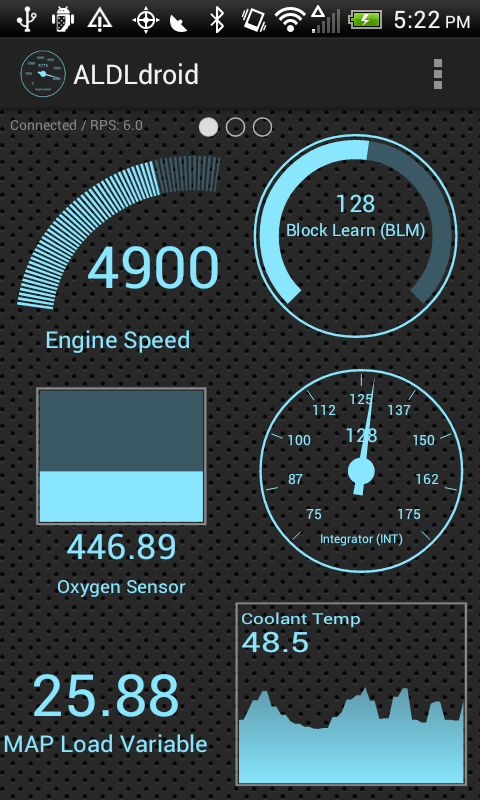
ALDLdroid dashboard showing live gauges for engine speed, O2 sensor, coolant temp, and more

Live dashboard with gauges, bar graphs, histograms, and readouts displaying real-time ECM data

Indicators & Display Formats

Each data parameter from your ECM can be displayed using one of several indicator formats:

FormatBest ForDescription
GaugeRPM, speed, temperatureCircular analog-style gauge with a sweeping needle. Provides an intuitive, at-a-glance reading.
Bar GraphTPS, O2 sensor, duty cyclesHorizontal or vertical bar that fills proportionally to the current value.
Basic ReadoutAny numeric valueSimple numerical display showing the current value with its unit. Compact and precise.
HistogramTime-based trendsRolling chart showing the recent history of a value over time. Great for spotting trends.

Edit Mode

To customize your dashboard layout, double-tap anywhere on a dashboard page to enter Edit Mode. In Edit Mode you can:

  • Add indicators — Tap the add button and select a parameter from your ADX file, then choose a display format.
  • Edit indicators — Tap an existing indicator to change its parameter, format, colors, or styling.
  • Delete indicators — Remove unwanted indicators from the layout.
  • Drag & reposition — Press and hold an indicator, then drag it to your desired position on the screen.
  • Customize colors — Change the color scheme and visual styling of individual indicators.

The dashboard supports multiple pages, so you can create separate screens for different use cases (e.g., one for cruising, one for tuning, one for diagnostics).

Portrait & Landscape Layouts

ALDLdroid maintains separate dashboard layouts for portrait and landscape orientations. Because the screen dimensions change significantly when you rotate your device, each orientation has its own independent arrangement of indicators. You can customize both layouts independently — for example, use a compact stack of readouts in portrait mode for quick glances, and a wider spread of gauges in landscape mode when your device is mounted horizontally in the car. When you rotate your device, ALDLdroid automatically switches to the layout you configured for that orientation.

Pro Tip: Layout Strategy Create a "driving" dashboard with large gauges for RPM, speed, and coolant temp, and a separate "tuning" dashboard with detailed readouts for O2 voltage, spark advance, BLM, integrator, and other tuning-critical parameters. Take advantage of both orientations — set up each one for different use cases.

Dead Indicators

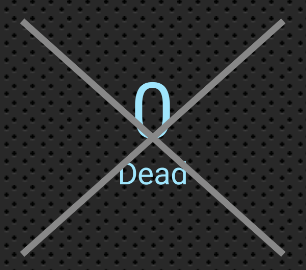
A dead indicator showing 0 with an X through it

A dead indicator — the parameter no longer exists in the loaded ADX file

If you see an indicator on your dashboard displaying "Dead" with a value of 0 and an X through it, this means the indicator is referencing a parameter that does not exist in your currently loaded ADX file. This typically happens when you switch to a different ADX file (for a different ECM or vehicle) while keeping a dashboard that was built using the previous ADX. The old indicators still reference parameters from the original ADX, and since those parameters don't exist in the new data stream definition, they appear as dead.

Fixing Dead Indicators Double-tap the dashboard to enter Edit Mode, then either delete the dead indicators and replace them with parameters from your current ADX file, or edit each dead indicator to reassign it to a valid parameter.

Alarms

ALDLdroid can alert you when a parameter exceeds a threshold you define. Alarms are configured per indicator:

  • Visual alarm — The indicator turns red when the alarm threshold is exceeded.
  • Vibration alarm — Your Android device vibrates when the alarm triggers, useful while driving.

To set an alarm, edit an indicator and enter the alarm threshold value. Common uses include high coolant temperature warnings, knock sensor alerts, or lean/rich O2 voltage limits.

Device Sensors (GPS & Accelerometer)

In addition to ECM data, ALDLdroid can display data from your Android device's built-in sensors:

  • GPS — Speed (useful for comparing against the ECM's VSS signal), latitude, longitude, and altitude.
  • Accelerometer — Triple-axis acceleration data including calculated G-force. Useful for performance testing and logging lateral/longitudinal forces.

These sensor readings can also be recorded alongside ECM data in your data logs.

6. Real-Time Data

The Real-Time Data screen displays a complete, scrollable list of every value and bit mask defined in your currently loaded ADX file. Unlike the Dashboard, which shows only the indicators you have chosen to display, the Real-Time Data view shows everything the ECM is reporting in a simple list format.

Values

Values are numeric parameters from the data stream — things like RPM, coolant temperature, throttle position, spark advance, injector pulse width, MAP sensor reading, vehicle speed, and so on. Each value is displayed with its parameter name and current reading, updated in real time as data arrives from the ECM. The exact list of values depends entirely on the ADX file you have selected, since different ECMs report different parameters.

Bit Masks

Bit masks represent on/off flags and status bits from the ECM. These are typically single-bit or multi-bit fields within the data stream that indicate the state of various engine controls and sensors. Examples include:

  • A/C clutch status — Whether the air conditioning compressor is engaged.
  • Closed loop / Open loop — Whether the ECM is in closed-loop fuel control.
  • Fan relay — Whether the cooling fan relay is commanded on.
  • Knock detected — Whether the knock sensor has detected detonation.
  • Park/Neutral switch — Transmission gear position indicator.
  • Power enrichment — Whether the ECM is commanding extra fuel under heavy load.

Each bit mask is displayed with its name and current state (on/off or true/false), updating in real time alongside the numeric values.

When to Use Real-Time Data vs. Dashboard Use the Dashboard when you want a customized, at-a-glance view of specific parameters while driving or monitoring the engine. Use the Real-Time Data screen when you need to see the full picture of everything the ECM is reporting — for example, when diagnosing an issue and you are not sure which parameter to look at, or when verifying that your ADX file is correctly decoding all data stream values.

7. Tuning Section

Overview

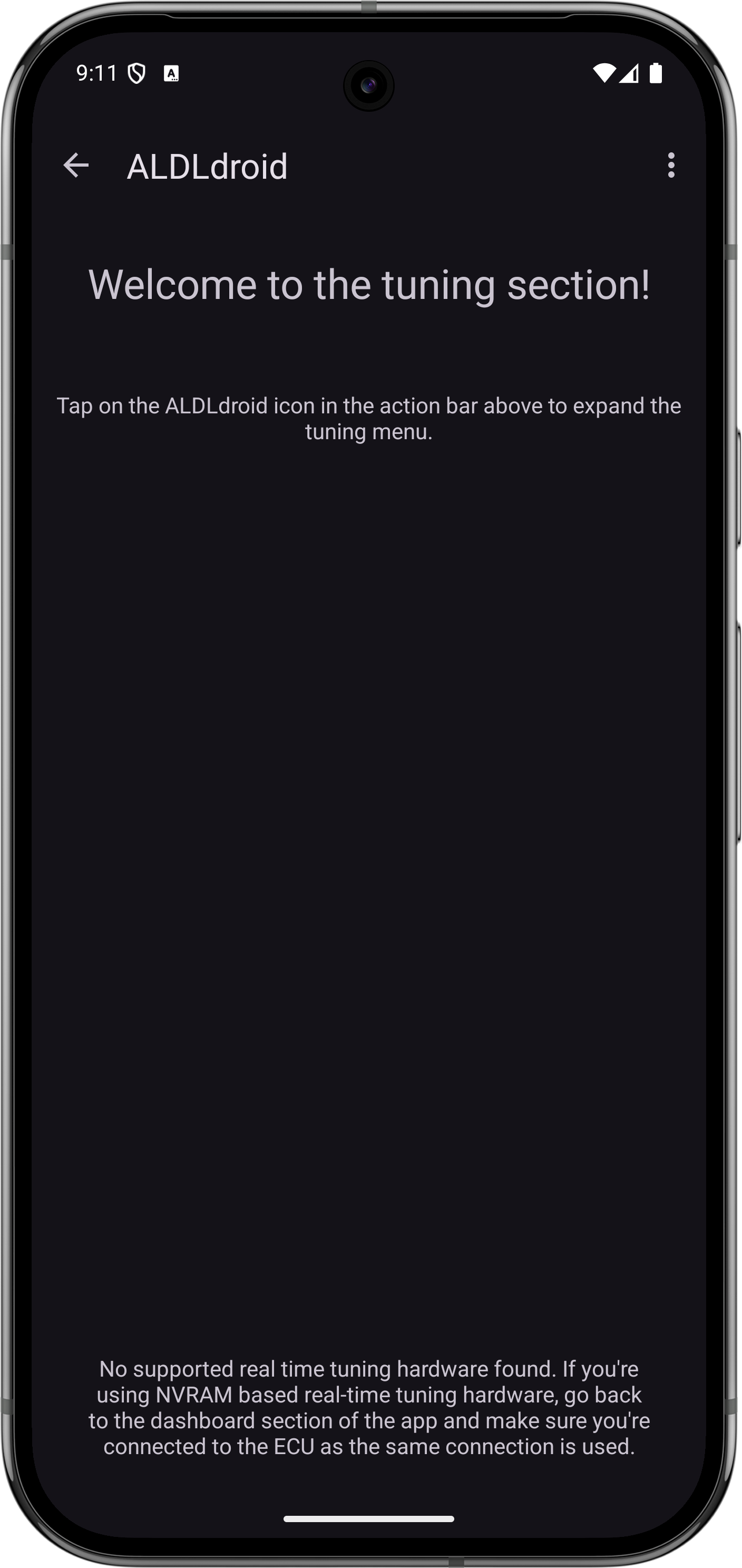
Tuning section welcome screen

Tuning section welcome screen

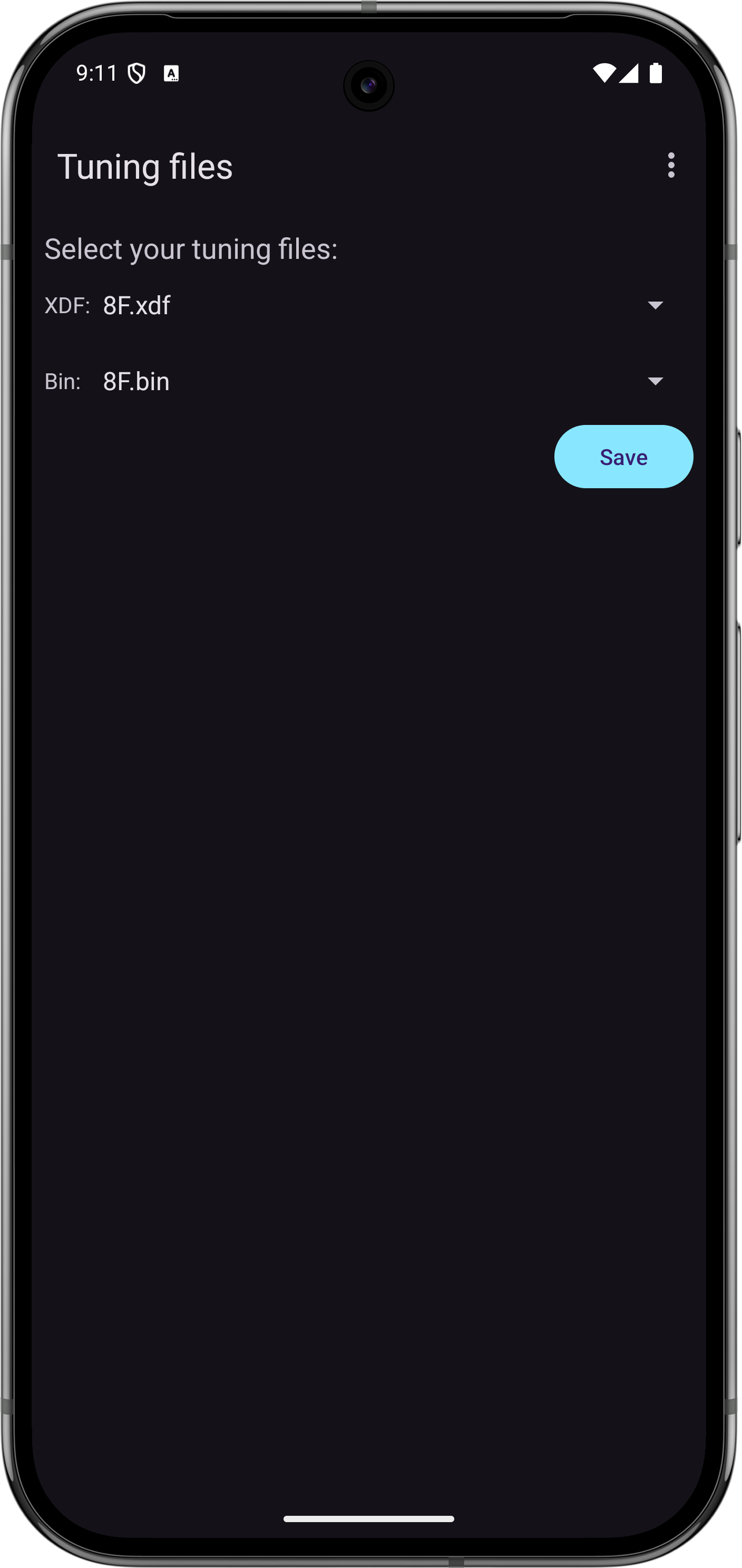
Tuning files import screen showing XDF and BIN file selection

Selecting XDF and BIN tuning files

The Tuning section transforms ALDLdroid into a portable calibration editor. Using TunerPro-compatible XDF definition files paired with BIN calibration files, you can view and modify all the tables, maps, and parameters that control your engine's behavior — fuel delivery, spark timing, idle control, transmission shift points, and much more.

There are two primary tuning workflows:

  • Offline editing — Load a BIN file, make changes, save, and later burn the modified file to a chip.
  • Real-time tuning — Send changes directly to the ECM's memory via a Moates Ostrich or AutoProm emulator while the engine is running.

2D Table Editing

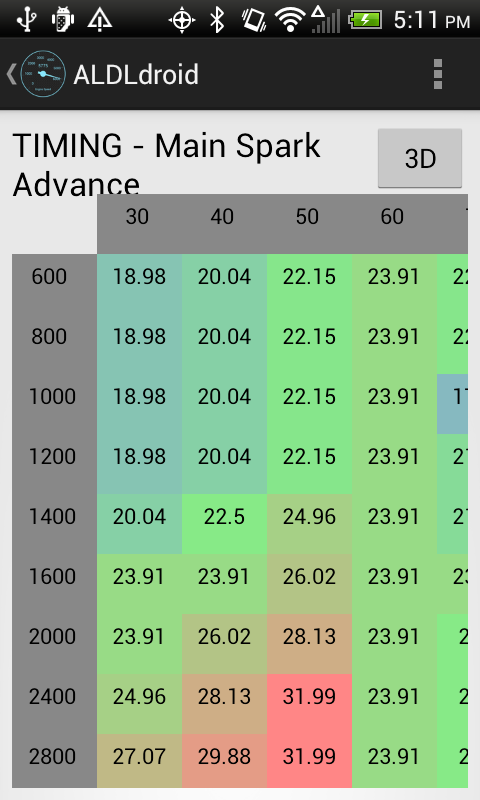
Most ECM calibration data is organized in one-dimensional or two-dimensional tables (e.g., a spark advance table indexed by RPM and MAP). The tuning editor provides a tabular view of these tables where you can:

  • View the full table with row and column headers.
  • Select individual cells or ranges of cells.
  • Modify values directly by tapping a cell and entering a new value.
  • Apply incremental changes across a selection (increase/decrease by a fixed amount or percentage).
2D table editor showing spark advance timing map with color-coded cells

2D table view — spark advance map with color-coded cells

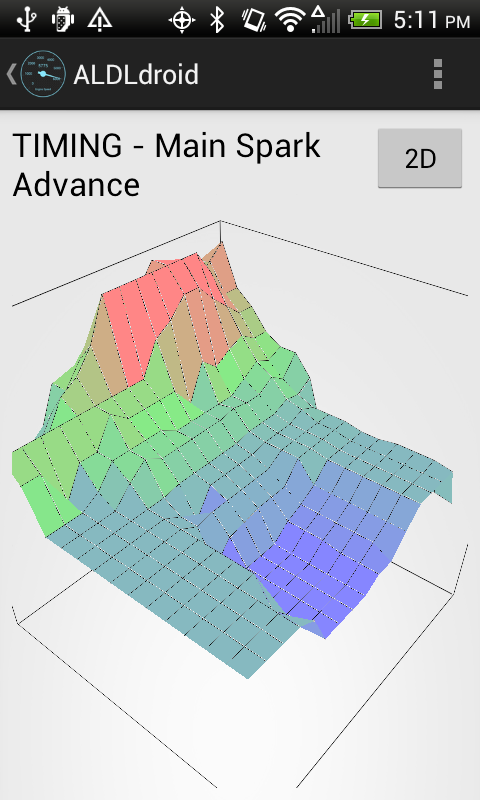
3D surface view of spark advance timing map

3D surface view of the same timing map

Loading Tuning Files

To begin editing, you need to load both an XDF and a BIN file:

Use the Import file menu in the Tuning files section to import your XDF and BIN files into ALDLdroid.
Open the Tuning section from the app's main menu.
Select your XDF file (definition) and then your BIN file (calibration data).
The tuning editor will display all tables and parameters defined in the XDF. Navigate using the list or search for a specific table.

Real-Time Tuning

Real-time tuning allows you to push calibration changes directly to the ECM while the engine is running, seeing the effects immediately. This requires a chip emulator installed in your ECM's PROM socket.

Supported Real-Time Tuning Hardware

DeviceDescription
Moates OstrichA chip emulator that replaces the PROM in your ECM. Connected via USB, it allows ALDLdroid to send updated calibration data to the ECM in real time.
Moates AutoPromCombines chip emulation (like the Ostrich) with built-in EPROM burning capability. A versatile all-in-one solution.
Real-Time Tuning Caution Real-time tuning changes affect engine operation immediately. Incorrect values can cause running problems, stalling, or potential engine damage. Always make small, incremental changes and monitor the engine's response carefully. Have a known-good BIN file ready to revert to if needed.

NVRAM-Based Real-Time Tuning

Some ECMs are equipped with NVRAM (non-volatile RAM) modules that allow real-time tuning without requiring an external emulator like the Ostrich. ALDLdroid supports this feature for compatible ECMs. This has been tested primarily with Australian market ECMs such as the Delco 808.

If your ECM has an NVRAM module installed, ALDLdroid can write tuning changes directly to the NVRAM over the ALDL data link, providing a fully wireless real-time tuning experience when used with a Bluetooth adapter.

Tuning Beyond GM

While ALDLdroid was designed for GM ECMs, the tuning file editor works with any unencrypted XDF/BIN file pair. This means you can use ALDLdroid as a portable BIN editor for vehicles from many other manufacturers, including:

BMW (N54), Buell, DSM (Mitsubishi), Ducati, Ford, Holden, Nissan, Porsche, Volvo, Fiat, Renault, and others — as long as you have the appropriate XDF definition file.

Note on Non-GM Vehicles ALDLdroid supports ADX files for non-GM vehicles as well, including BMW and other manufacturers. If an ADX definition file exists for your ECM, you can use ALDLdroid for live data streaming and diagnostics just like with GM vehicles. The tuning editor also works with any XDF/BIN file pair regardless of manufacturer.

8. Chip Programming

ALDLdroid can write (burn) your modified BIN file to a physical EPROM chip, allowing you to install your custom calibration directly into your ECM. This is the traditional method of applying tuning changes to OBD-I vehicles that use socketed PROM/EPROM chips.

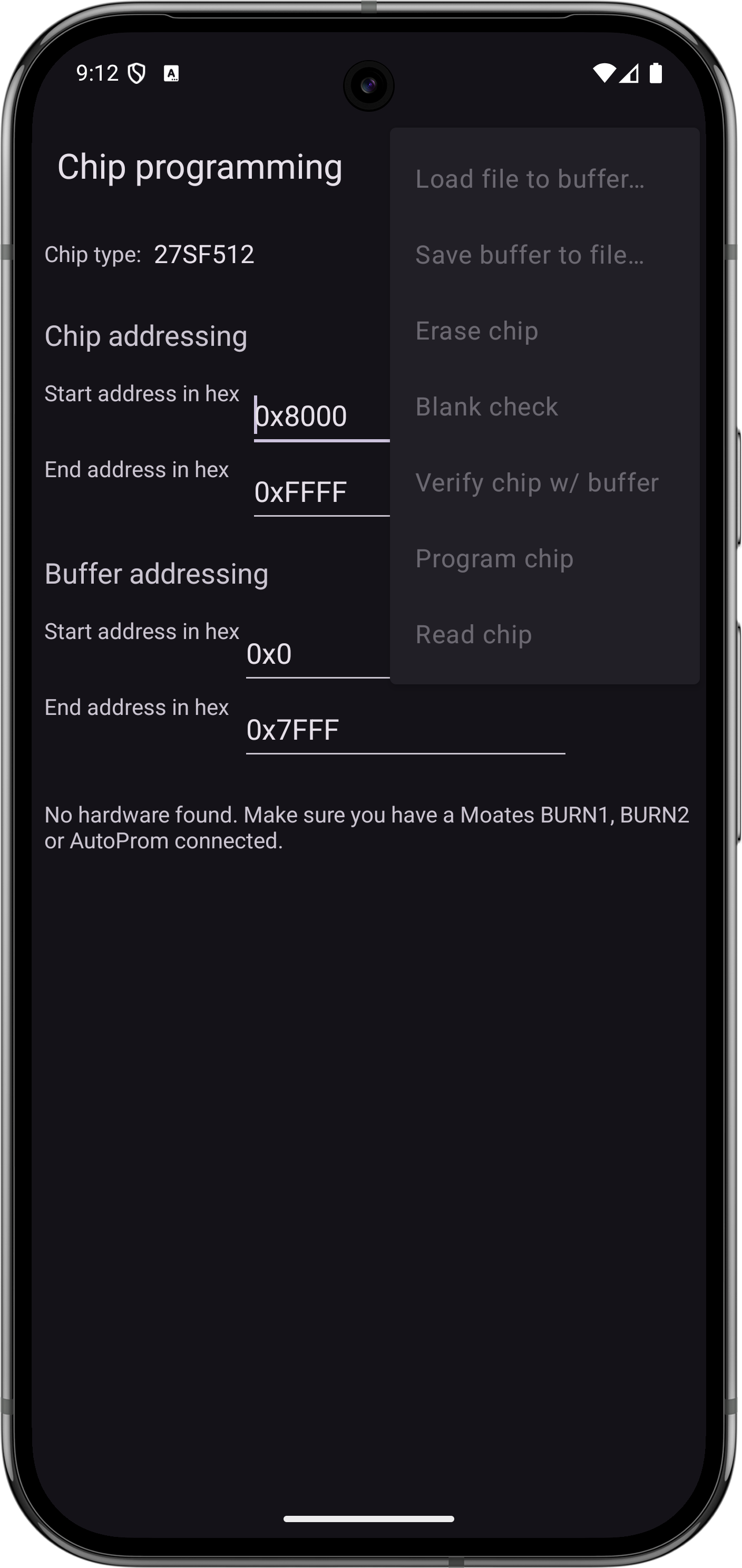
Chip programming interface showing addressing, chip type, and action menu

Chip programming screen with addressing settings and action menu (load, erase, verify, program, read)

Required Hardware

DeviceTypeNotes
Moates BURN2EPROM ProgrammerCurrent-production chip burner. Connects via USB. The recommended option for new purchases.
Moates BURN1EPROM ProgrammerOriginal chip burner. Discontinued but still fully supported if you have one.
Moates AutoPromEmulator + ProgrammerCan also burn chips in addition to its real-time emulation capabilities.

Burning a Chip

Prepare your BIN file. Using the Tuning section, load and edit your calibration. Save the modified BIN file.
Insert a blank EPROM chip (or a chip you want to overwrite) into your BURN2, BURN1, or AutoProm programmer. Ensure proper orientation — the notch on the chip should align with the notch on the ZIF socket.
Connect the programmer to your Android device via USB (OTG adapter may be needed).
Open the chip programming interface in ALDLdroid. Select the BIN file you want to burn.
Start the burn process. ALDLdroid will write the data to the chip and verify the result. Do not disconnect or interrupt during this process.
Install the chip into your ECM's PROM socket. Ensure the ignition is OFF before removing or installing chips.
Important Safety Warnings Always turn off the ignition before removing or inserting chips in your ECM. Handle EPROM chips carefully — they are sensitive to static discharge. Use an anti-static wrist strap when handling chips. Never interrupt a chip burn in progress, as this can result in a corrupted chip.

9. Data Logging

Data logging records ECM parameters over time so you can analyze engine behavior after the fact. ALDLdroid records all parameters defined in your ADX file plus optional device sensor data (GPS, accelerometer) into CSV and XDL log files for easy export and analysis.

Recording Logs

While connected to your ECM, tap the Record button to begin logging data. All active parameters from the data stream will be recorded at the polling rate of your connection. Tap Stop to end the recording. Log files are saved in CSV and XDL format to the ALDLdroid/datalogs/ directory on your device.

Log File Format Logs are saved as both CSV and XDL files. CSV files can be opened in any spreadsheet application (Excel, Google Sheets, LibreOffice Calc) or imported into analysis tools like MegaLogViewer or custom scripts. XDL files can be opened in TunerPro — make sure you are using the exact same ADX file in TunerPro as you had loaded in ALDLdroid when the log was recorded, otherwise the data columns will not align correctly.

Managing Data Logs

ALDLdroid provides a built-in data log management screen where you can browse, open, rename, delete, and share your recorded log files. All logs stored in the ALDLdroid/datalogs/ directory are listed here with their recording date, duration, and file size.

Available Actions

  • Open — Load a log file into one of the built-in log viewers (time-series, scatter graph, or maps) for analysis.
  • Rename — Give your log a descriptive name (e.g., "WOT pull highway 3rd gear" or "Idle warm 85F") so you can find it later.
  • Delete — Remove log files you no longer need to free up storage space.
  • Share / Export — Share log files via email, cloud storage, or any other sharing method available on your Android device. This is useful for sending logs to a tuner or posting them on forums for analysis.
Tip: Keep Your Logs Organized After a tuning session, take a moment to rename your logs with meaningful names while you still remember what each run was. This makes it much easier to compare logs later, especially when you have dozens or hundreds of recordings.

Built-in Log Viewers

ALDLdroid includes three integrated log viewers so you can analyze data without leaving the app. Each viewer is designed for a different type of analysis. You can switch between viewers from the log viewer screen.

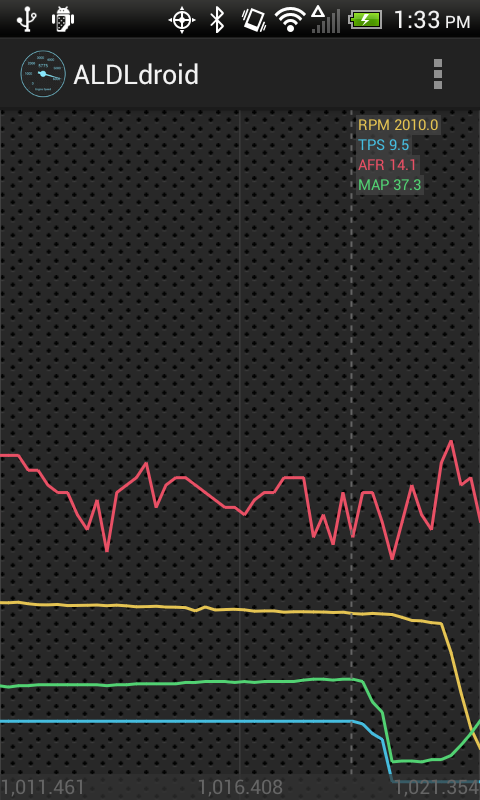
Time-series data log viewer showing RPM, TPS, AFR, and MAP traces

Time-series log viewer with RPM, TPS, AFR, and MAP traces overlaid

Time-Series Viewer

The Time-Series Viewer is the primary log analysis tool. It displays parameters as colored line traces plotted against time on the X axis. This is the standard way to review a data log.

Key Features

  • Multi-trace overlay — Select multiple columns (parameters) from your log to display simultaneously. Each parameter gets its own color-coded trace, making it easy to see correlations (e.g., RPM rising as TPS increases).
  • Cursor / scrubbing — Tap or drag along the timeline to move a cursor that shows the exact values of all displayed parameters at that point in time. This is invaluable for pinpointing the exact moment something happened.
  • Zoom and pan — Pinch to zoom into a specific time window for closer analysis, or pan left and right to navigate through the log.
  • Column selection — Choose which parameters to display from the full list of logged columns. You can toggle traces on and off to reduce visual clutter.

Typical Usage

Load a data log, select the parameters you want to examine (e.g., RPM, TPS, spark advance, O2 voltage, BLM, integrator), and scrub through the timeline. Look for anomalies like sudden lean spikes in the O2 trace, unexpected timing retard, or sensor values that don't track together the way they should. The overlay format makes it easy to see cause-and-effect relationships between parameters.

Tip: Merge with GPS The time-series viewer can be merged with the GPS map viewer, letting you tap a point on the map and see exactly what the engine was doing at that location, or scrub through the time-series and watch your position update on the map.

Scatter Graph Log Viewer

The Scatter Plot Viewer lets you visualize the relationship between any three parameters from your data log by mapping them to the X axis, Y axis, and color (Z axis). Instead of plotting against time, this viewer shows how two variables relate to each other across your entire log, with a third variable represented by dot color.

How It Works

  • X axis — Select a parameter for the horizontal axis (e.g., RPM).
  • Y axis — Select a parameter for the vertical axis (e.g., MAP sensor reading in kPa).
  • Z axis (color) — Select a third parameter to be represented by the color of each dot (e.g., spark advance, fuel command, or O2 voltage).

Each sample from your data log appears as a single colored dot on the plot. Clusters of dots show where the engine spent the most time, and the color gradient reveals how the Z parameter behaved in those operating regions.

Practical Examples

X AxisY AxisZ Axis (Color)What It Reveals
RPMMAPSpark AdvanceShows timing across the operating range. Red zones may indicate knock retard areas.
RPMMAPCommanded Fuel (BPW/PW)Visualizes how your fuel map is being utilized. Identifies rich or lean zones.
RPMTPSO2 VoltageShows air-fuel ratio behavior by throttle position and engine speed.
RPMMAPBLM / IntegratorReveals where the ECM is making the most long-term or short-term fuel corrections.
Vehicle SpeedRPMTPSVisualizes gear changes and shift points under varying throttle inputs.
Why Scatter Plots Matter for Tuning A scatter plot of RPM vs. MAP colored by BLM effectively shows you which cells of your VE or fuel table need adjustment. If you see a cluster of dots at 3000 RPM / 60 kPa that are all colored to indicate a BLM of 145 (rich correction), you know that area of your fuel map is too lean and needs more fuel added.

Maps Log Viewer

The GPS & Map Viewer plots your vehicle's driven path on a map using the GPS data recorded by your Android device during the logging session. The path is drawn as a colored line, where the color represents a selected parameter value at each point along the route.

Key Features

  • Color-coded path — The trace on the map is colored according to a parameter you choose (vehicle speed, RPM, TPS, etc.), giving you an instant visual overview of engine behavior along the route.
  • Tap for details — Tap any point on the path to see the full set of ECM parameter values at that exact location and time.
  • Merge with Time-Series Viewer — The map viewer can be combined with the time-series viewer in a split view. Scrubbing through the time-series chart updates your position on the map, and tapping a point on the map jumps to that moment in the time-series chart.
  • Start and end markers — The beginning and end of your route are clearly marked for orientation.

Practical Uses

  • Road tuning — Color the path by BLM or integrator to see where on your tuning route the ECM is making the biggest corrections, then focus your tuning efforts on those sections.
  • Track analysis — Review speed and RPM through each corner and straight on a track layout. Identify where you are hitting the rev limiter, where shifts occur, and where you are losing speed.
  • Diagnosing intermittent problems — If an issue only occurs on a specific hill, curve, or stretch of road, the map viewer lets you correlate physical location with ECM behavior.
GPS Accuracy GPS logging uses your Android device's built-in GPS receiver. Accuracy depends on your device, satellite visibility, and mounting position. For best results, keep the device near a window or use an external GPS if your device has poor reception. Tunnels, parking garages, and dense urban canyons may cause gaps in the GPS trace.

Accelerometer Data

When enabled, the app logs your device's triple-axis accelerometer data alongside ECM parameters. This provides G-force measurements for lateral (cornering), longitudinal (acceleration/braking), and vertical forces. The accelerometer data appears as additional columns in your log files and can be displayed in any of the three log viewers.

  • In the time-series viewer — Overlay G-force traces against engine parameters to see how acceleration events correlate with throttle inputs, RPM changes, or gear shifts.
  • In the scatter plot viewer — Use G-force as an axis to identify how hard you are accelerating at different RPM and throttle positions.
  • In the GPS map viewer — Color your path by G-force to visualize braking zones and cornering intensity on a track or road course.

For best results, mount your device securely in a fixed position aligned with your vehicle's axes (screen facing up, top of phone pointing toward the front of the car).
10. Settings & Configuration

The Settings screen allows you to configure ALDLdroid's behavior and hardware connections.

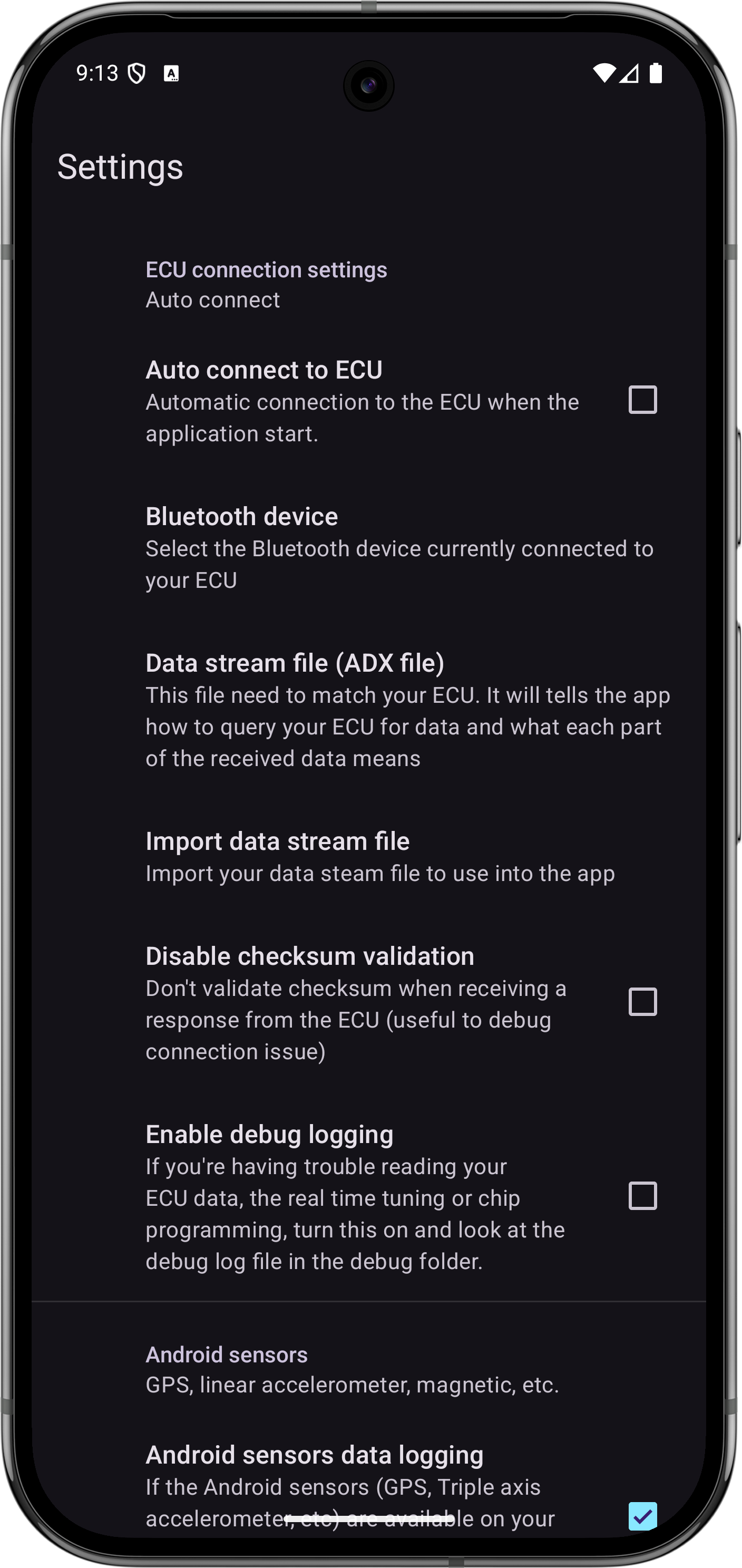
ALDLdroid settings screen showing connection, data stream, and logging options

Settings screen — ECU connection, data stream file, checksum, and sensor logging options

SettingDescription
Data Stream FileSelect which ADX file to use for ECM communication. Tap this line to browse available ADX files in the adx/ directory.
Connection TypeChoose between Bluetooth and USB (FTDI) connection modes.
Bluetooth DeviceSelect which paired Bluetooth adapter to connect to (visible when Bluetooth is selected).
Disable Checksum ValidationDisables checksum verification on incoming data stream packets during data logging. Useful if you are experiencing communication errors, but means corrupted packets will not be filtered out.
GPS LoggingEnable or disable GPS data recording during data logging sessions.
Accelerometer LoggingEnable or disable accelerometer data recording during data logging sessions.
Dashboard PagesManage multiple dashboard layouts.

11. Supported Vehicles & ECMs

GM OBD-I (Primary Support)

ALDLdroid was built for GM vehicles using the ALDL protocol. This covers a wide range of ECMs found in GM vehicles from approximately 1982 through 1995. Common ECMs include various members of the Delco family: the 1227747, 1227730, 1228746, 16198262, 1227808 (Australian Delco 808), and many others. Compatibility depends on having the correct ADX file for your specific ECM and mask.

Common GM Vehicle Platforms

The app is popular among owners of Chevrolet Camaros and Pontiac Firebirds (Third and Fourth Generation F-bodies), Corvettes (C4), Buick Grand Nationals and Turbo Regals, S-10/S-15 trucks, and various other GM vehicles of the era. If your vehicle has an ALDL connector and a supported ECM, ALDLdroid can likely talk to it with the right ADX file.

Non-GM Vehicles

ALDLdroid is not limited to GM vehicles. ADX definition files exist for a wide range of manufacturers, including BMW, Buell, DSM (Mitsubishi), Ducati, Ford, Holden, Nissan, Porsche, Volvo, Fiat, Renault, and others. With the appropriate ADX file, ALDLdroid can provide live data streaming and diagnostics for these vehicles as well. The tuning editor also works with any XDF/BIN pair for offline calibration editing.

12. Troubleshooting

What issue are you experiencing?
Connection Problem: How did you attempt to connect?
Bluetooth Connection Issues
Bluetooth Won't Pair Solution:

1. Verify the adapter is powered (ignition ON in vehicle)
2. Put adapter into pairing mode (consult manual)
3. Forget the adapter in Android Settings and retry pairing
4. Try pairing with PIN 0000 or 1234
5. Restart both the adapter and your Android device

Bluetooth Connected but No ECM Response:

1. Verify the correct ADX file is selected in Settings
2. Check that RS232 Echo is enabled in the ADX (open in TunerPro on a PC)
3. Ensure the vehicle's ignition is ON (not just accessories)
4. Try toggling the vehicle's ignition off and on
5. Move closer to the adapter to improve signal
6. Check the vehicle's ALDL connector for corrosion or loose pins

USB Connection Issues
USB Device Not Recognized:

1. Verify your device supports USB OTG (use a USB OTG Checker app)
2. Try a different USB OTG cable; the current one may be faulty
3. Ensure the FTDI cable is properly connected to the OTG adapter
4. Update ALDLdroid to the latest version for driver updates
5. Restart your device and retry

USB Crashes on Connection:

1. Update ALDLdroid to the latest version (includes updated FTDI drivers)
2. Check that you're using a quality USB OTG cable
3. Try a different USB port on the cable (if multi-port)
4. Restart your Android device
5. If crashes persist, try a different FTDI cable or adapter

USB Connected but No ECM Response:

1. Verify the correct ADX file is selected in Settings
2. Ensure the vehicle's ignition is ON (not just accessories)
3. Check FTDI cable connections to the ALDL adapter
4. Try a different USB port on your device
5. Verify RS232 Echo is enabled in your ADX file

Data Quality Problem
Nonsensical Data Values:

1. Wrong ADX file selected: Verify the ADX matches your exact ECM model and mask
2. Check the ADX file in TunerPro on a PC to confirm it's correct
3. Download the correct ADX from tunerpro.net
4. If you're sure the ADX is correct, the ECM may be faulty

Choppy or Dropping Data:

1. Bluetooth: Move closer to the adapter or reduce interference
2. Bluetooth: The adapter battery may be low; charge it
3. USB: Check cable connections and try a different cable
4. USB: Try a different USB port on your device
5. Both: Enable "Disable Checksum Validation" in Settings if errors are frequent

Missing or Zero Parameters:

1. The ADX may define parameters your specific ECM doesn't support
2. Different ECM masks have different hardware and features
3. Check your ECM's datasheet or documentation
4. Verify you have the right ADX for your ECM mask (e.g., 1227747.3 vs 1227747.7)

Tuning / Chip Issue
Data Stream Errors or Garbled Values:

1. Check your cable connections and ALDL connector for corrosion
2. Try a different cable if you have one
3. In Settings, enable "Disable Checksum Validation" to allow corrupted packets through (temporary workaround)
4. Consider replacing the cable or adapter if errors persist

Chip Burn Fails or Verifies with Errors:

1. Bad EPROM chip: Try a new, quality EPROM (cheap chips often fail)
2. Poor chip seating: Ensure the chip is fully inserted in the ZIF socket
3. Bent pins: Inspect the chip pins for damage
4. Update ALDLdroid for latest programmer drivers
5. If still failing, the BURN hardware may be faulty

ECM Won't Start With New Chip:

1. Corrupted or incompatible BIN: Verify the BIN matches your ECM exactly
2. Wrong BIN for your ECM: Use a known-good BIN to test
3. Bad chip programming: Verify the chip was written and verified successfully
4. Reinstall your known-good, original chip and troubleshoot the BIN
5. Consult the ECM vendor or community forums for your specific ECM

Troubleshooting Tables (Reference)

Cannot Connect to ECM

SymptomPossible CauseSolution
No response from ECM Wrong ADX file selected Verify you have the correct ADX file for your specific ECM model and mask. Check the ADX file in TunerPro on a PC if needed.
No response from ECM RS232 Echo setting wrong in ADX Open the ADX in TunerPro and set RS232 Echo to ON. Save and re-transfer to your device.
No response from ECM Ignition not on The ECM must be powered. Turn ignition to ON (engine running or key-on, engine-off).
Bluetooth won't pair Adapter not powered or in pairing mode Check that the adapter is receiving power from the ALDL connector (ignition on). Consult your adapter's manual for pairing instructions.
USB not recognized No USB Host mode support Your device may not support USB OTG. Verify with a USB OTG checker app. Try a different device if unavailable.
USB crashes on connect FTDI driver incompatibility Update to the latest version of ALDLdroid, which includes updated FTDI drivers for both older and newer Android versions.

Data Looks Wrong or Erratic

SymptomPossible CauseSolution
Values are nonsensical (e.g., -40°F coolant temp) Mismatched ADX file The ADX definitions don't match your ECM's data stream. Find the correct ADX for your ECM.
Data is choppy or drops out Poor Bluetooth signal Move your device closer to the adapter. Reduce interference from other Bluetooth devices.
Some parameters show zero or are missing ADX defines parameters the ECM doesn't support Some ADX files include parameters that only exist on certain ECM masks. These will read as zero on incompatible ECMs.

Tuning / Chip Issues

SymptomPossible CauseSolution
Data stream errors or garbled values Noisy connection or faulty cable Check your cable and connections. If errors persist, you can go to Settings and disable checksum validation to allow packets through without verification, though corrupted data may appear.
Chip burn fails or verifies with errors Bad EPROM chip or poor contact Try a new chip. Ensure the chip is properly seated in the ZIF socket. Check for bent pins.
ECM doesn't start with new chip Corrupted or incompatible BIN Reinstall your known-good chip. Verify the BIN file matches your ECM and the checksum is correct.

13. Glossary

TermDefinition
ALDLAssembly Line Diagnostic Link — GM's pre-OBD-II diagnostic communication protocol.
ADXA TunerPro data acquisition definition file that tells the software how to read an ECM's data stream.
XDFA TunerPro tuning definition file that maps the structure of tables and parameters inside a BIN file.
BINA binary calibration file containing the raw data stored on an ECM's PROM chip (fuel maps, spark tables, etc.).
ECMEngine Control Module — the computer that controls engine operation.
PROMProgrammable Read-Only Memory — a removable chip in the ECM containing the calibration data.
EPROMErasable Programmable Read-Only Memory — a reusable PROM chip that can be erased (typically with UV light) and reprogrammed.
NVRAMNon-Volatile RAM — memory that retains data without power, used in some ECMs for real-time tuning.
FTDIFuture Technology Devices International — manufacturer of USB-to-serial converter chips used in ALDL cables.
OBD-IOn-Board Diagnostics, first generation — the pre-1996 diagnostic standard (ALDL is GM's implementation).
OBD-IIOn-Board Diagnostics, second generation — the standardized protocol mandated from 1996 onward (not supported by ALDLdroid).
BLMBlock Learn Multiplier — a long-term fuel trim value the ECM uses to compensate for consistent rich/lean conditions.
TPSThrottle Position Sensor — measures throttle blade opening angle.
MAPManifold Absolute Pressure sensor — measures intake manifold vacuum/pressure.
VSSVehicle Speed Sensor — provides vehicle speed data to the ECM.
ZIF SocketZero Insertion Force socket — a chip socket with a lever that allows easy insertion and removal of chips without bending pins.

14. Resources & Community

Official

  • ALDLdroid Websitealdldroid.com
  • Google Play Store — Search "ALDLdroid" for the latest version
  • Developer — Sébastien Giroux

Community Forums

  • ThirdGen.org — Active discussion thread for ALDLdroid, especially popular with F-body owners
  • pcmhacking.net — Extensive technical discussion spanning 38+ pages of ALDLdroid usage, troubleshooting, and feature requests
  • GearHead-EFI — Long-running ALDLdroid thread (70+ pages) with detailed setup guides and user experiences
  • TurboTweak / TurboBuick — Resources specific to Buick Grand National and turbo Regal owners
  • CorvettefForum — C4 Corvette-specific ALDLdroid discussion

File Resources

  • TunerProtunerpro.net — Source for ADX and XDF files, plus the desktop companion software
  • Moatesmoates.net — Manufacturer of the Ostrich, AutoProm, BURN1, and BURN2 hardware

Related Software

  • TunerPro RT — The free Windows-based ECM tuning and data logging software that ALDLdroid's file formats are based on
  • MegaLogViewer — A powerful cross-platform data log analysis tool that can open ALDLdroid's CSV log files